When it counts,
know what to do.

Life Tips
Step-by-step guides, emergency contacts, insurance policies, and saved routes, all in one simple app on your phone.
Free, with a banner ad at the bottom of the home screen. Emergency screens never show ads. An optional subscription removes the ad.

- Price
- Free
- Category
- Utilities
- Requires
- iOS 18.0+
- Size
- 26.6 MB
Ready before you need it
- 13 guides that work offline
- One-tap SOS text
- Policy expiry reminders
- No account needed
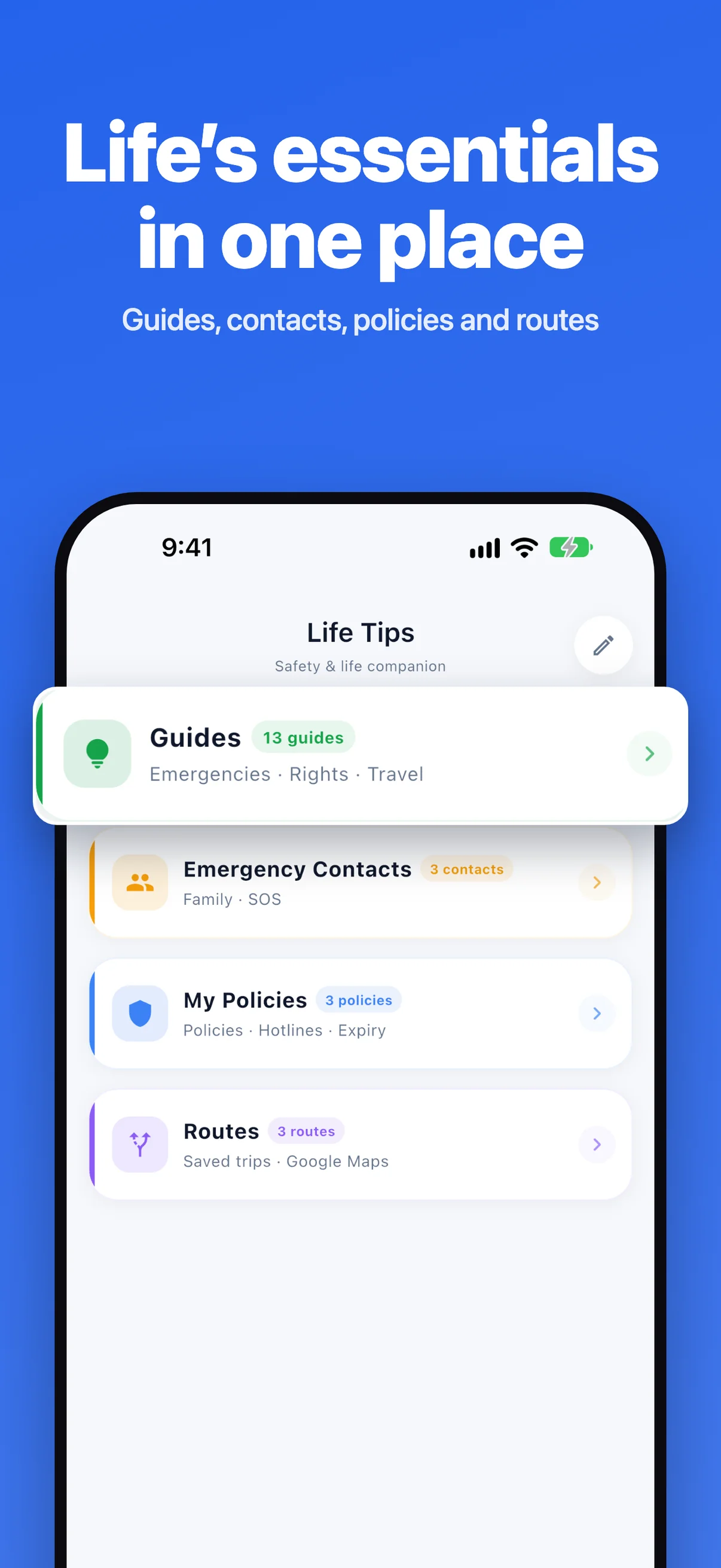
Life's essentials in one place
Guides, emergency contacts, insurance policies, and routes, each one tap from the home screen.
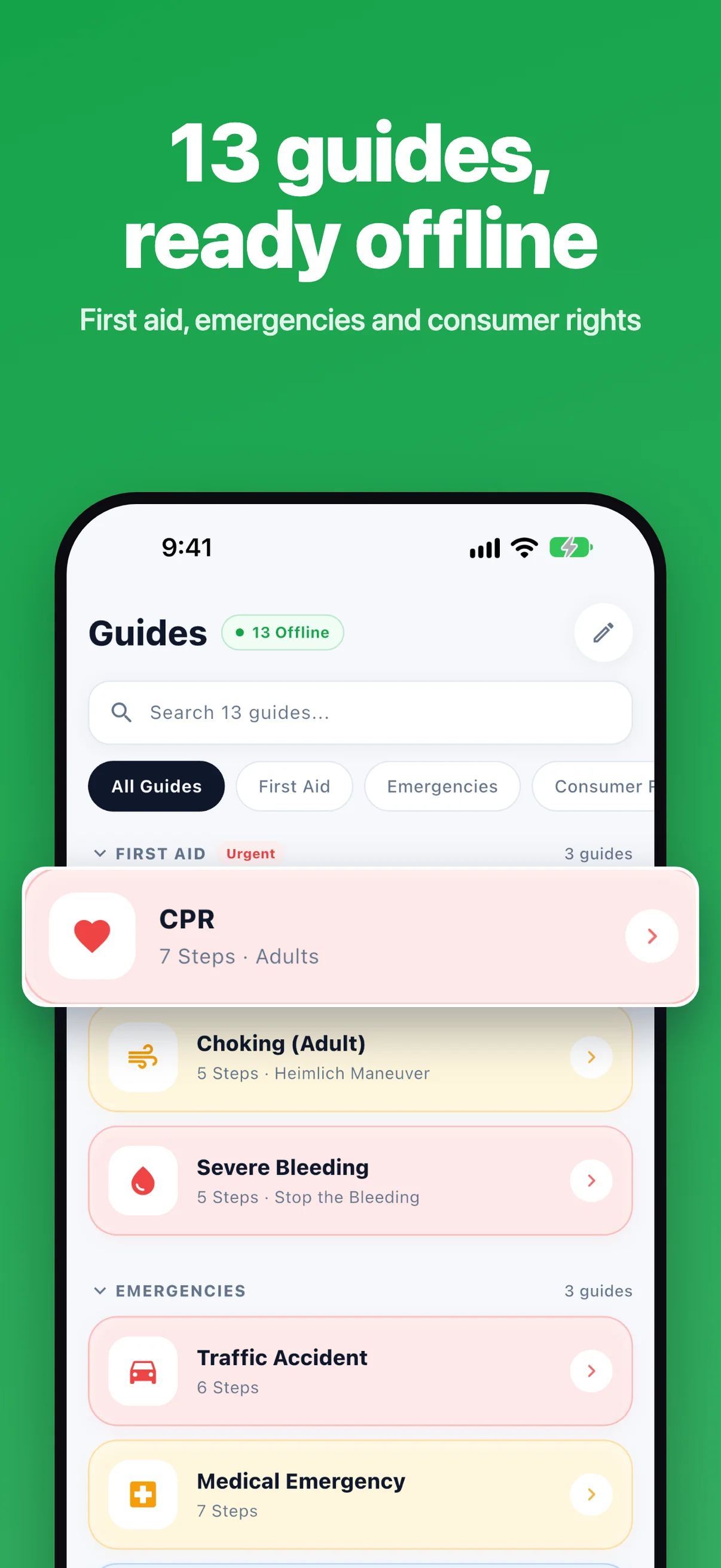
13 guides, ready offline
CPR, choking, severe bleeding, traffic accidents, phone scams, rental deposit disputes, lost parcels, and more. Search them or filter by category, even without a connection.
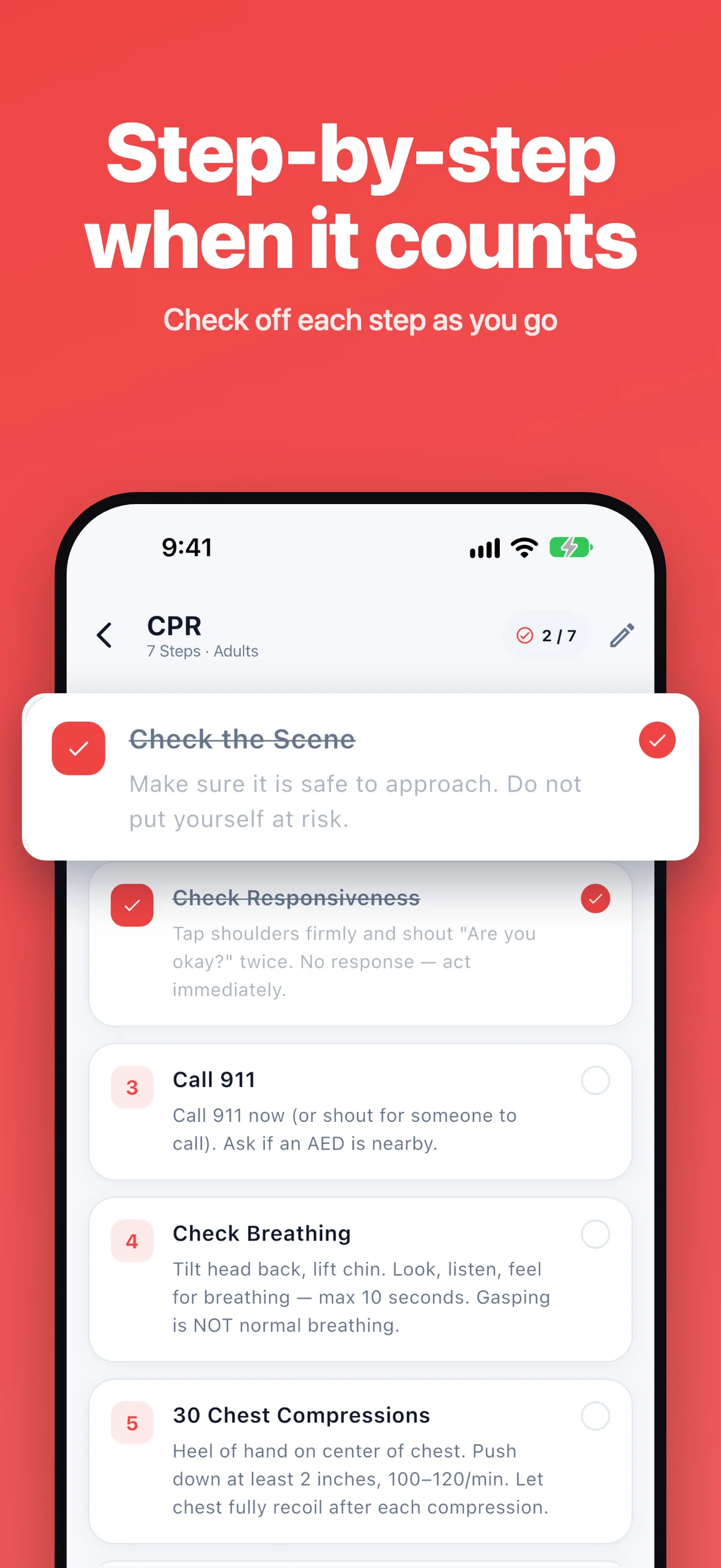
Step by step when it counts
Each guide is broken into clear steps you can check off as you go. Edit any step, or add your own steps and categories.
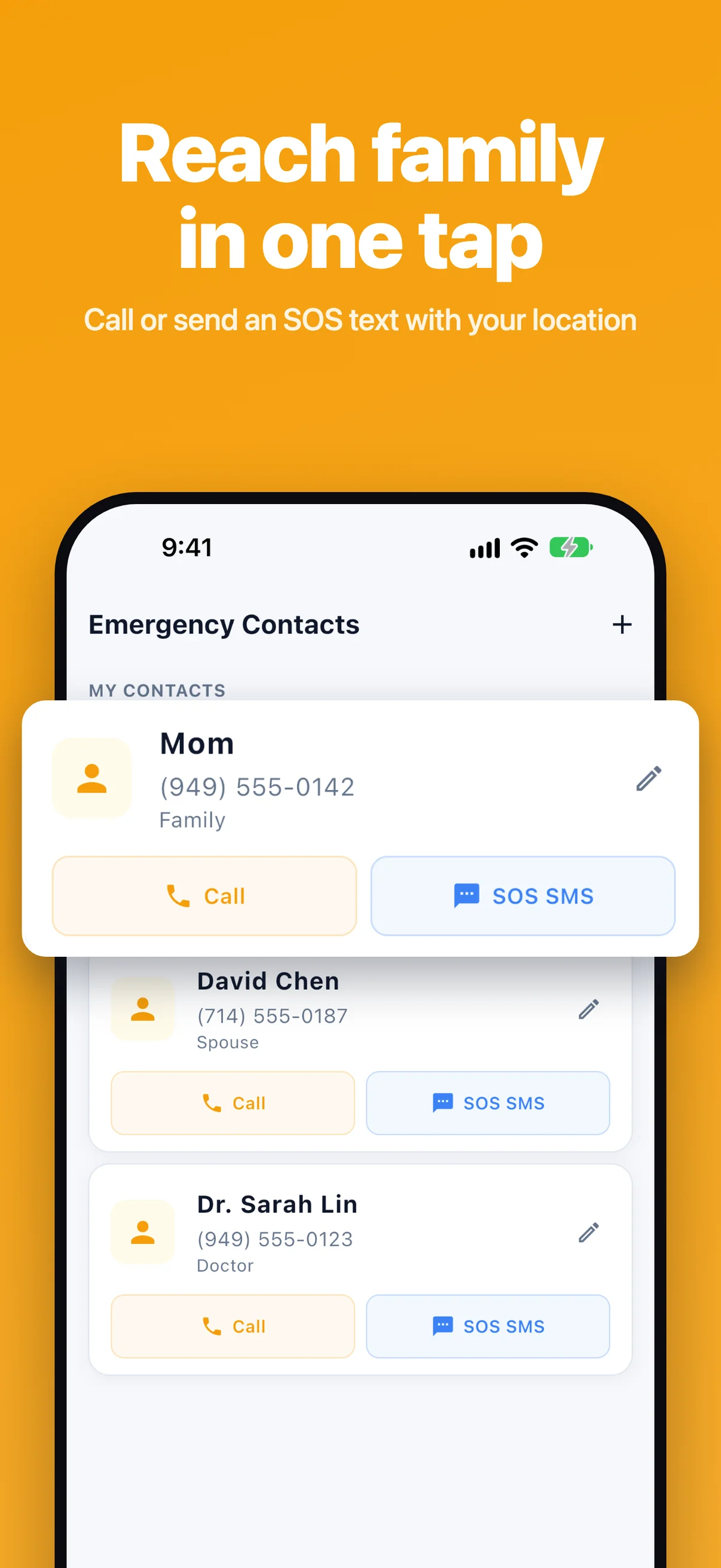
Reach family in one tap
Save family, your doctor, or your lawyer. Call them in one tap, or send an SOS text to all of them at once. If you allow location access, the text includes a map link to where you are.
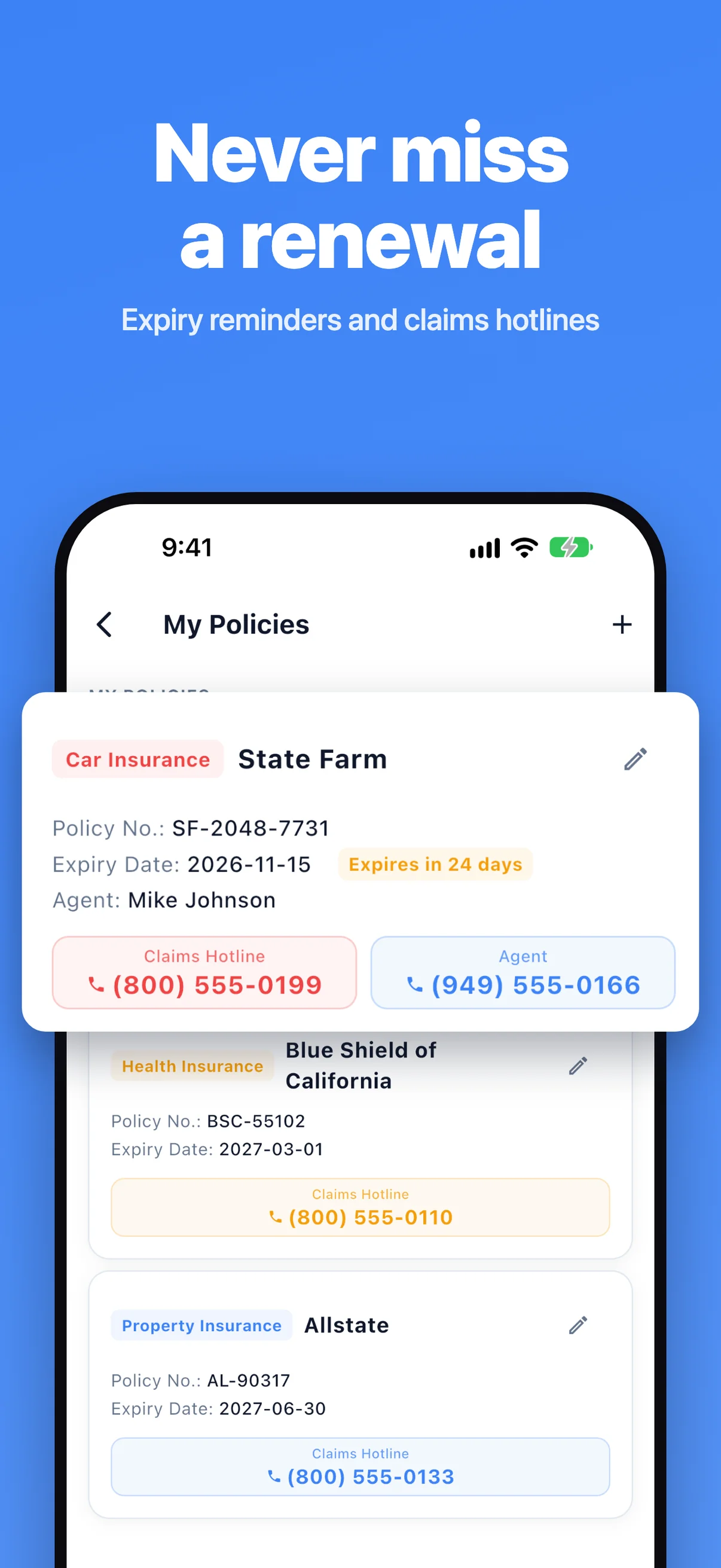
Never miss a renewal
Keep your car, health, and home insurance in one place: policy number, claims hotline, and agent. Get a reminder 30 days before a policy expires and on the day it does.
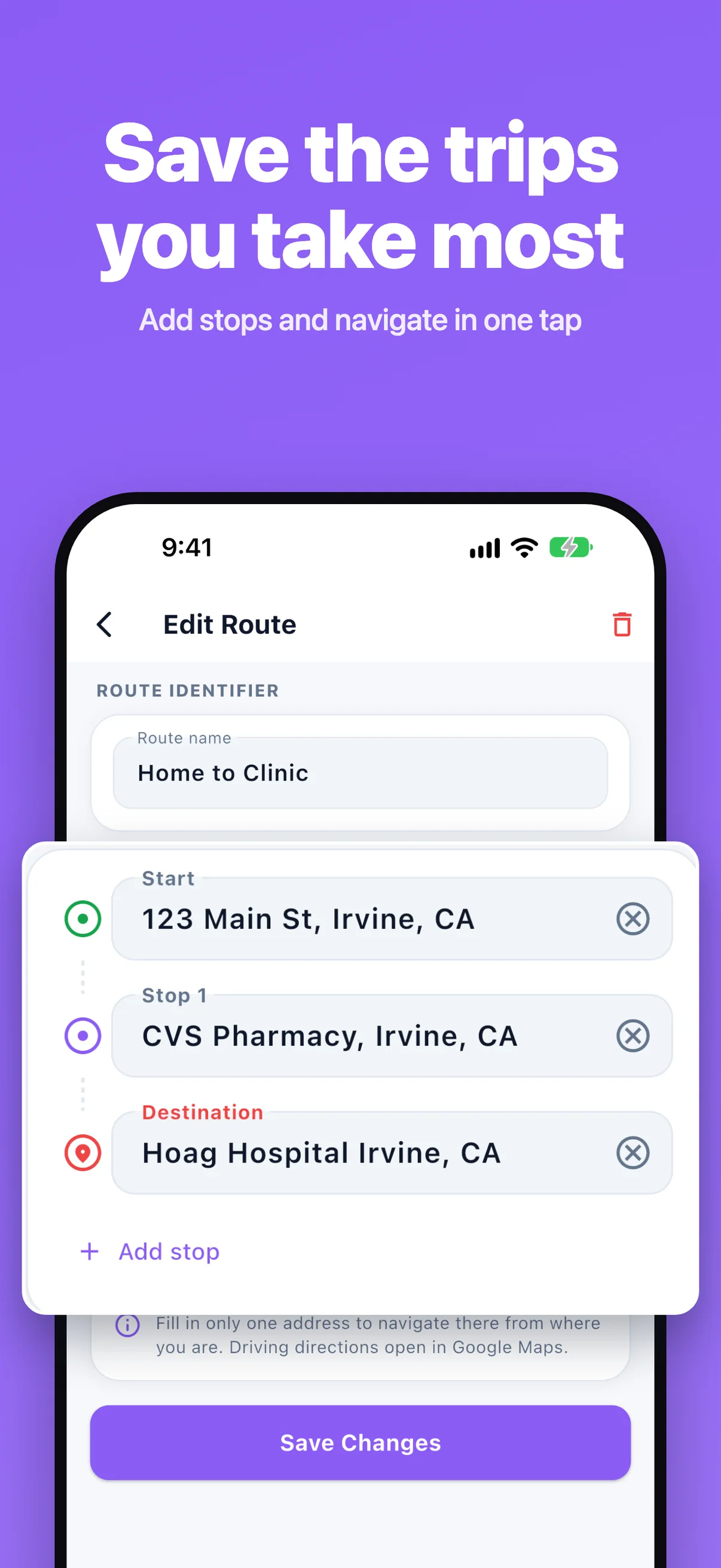
Save the trips you take most
Save trips with as many stops as you need, and open them in Google Maps with one tap.
Set it up once,
ready when you need it.
- 1
Add your contacts
Save the people you'd call first in an emergency.
- 2
Store your policies
Add policy numbers, claims hotlines, and agents.
- 3
Fill in your ICE card
Blood type, allergies, medications, and your doctor.
- 4
Open a guide
Follow the steps and check them off as you go.
Everything you'd scramble for, already in place.
Practical help for everyday problems and emergencies.
Step-by-step guides
13 built-in guides covering first aid, emergencies, and consumer rights. Search, check off steps, and edit or add your own.
Emergency contacts and SOS
Call a contact in one tap, or send an SOS text to all of them, with a map link if you allow location access.
Policy reminders
Keep every insurance policy in one place and get reminded 30 days before it expires and on the day it does.
Saved routes
Save trips with multiple stops and open them in Google Maps with one tap.
ICE card
Store your blood type, allergies, medications, conditions, and doctor's contact. It stays on your device.
Made to fit you
English and Chinese, light, dark, or system appearance, and backups you can export and import.
Q&A
Is Life Tips free?
Yes. Life Tips is free and shows a banner ad at the bottom of the home screen. Emergency screens never show ads. An optional auto-renewing monthly subscription, Remove Ads, removes the banner ad, and all features stay free. The App Store shows the price before you confirm. It renews automatically unless you cancel at least 24 hours before the end of the period. You can manage or cancel it in your Apple Account settings, and Restore Purchases in the app turns ad removal back on after a reinstall or on a new device.
Do the guides work without internet?
Yes. The 13 built-in guides work offline. Adding your location to an SOS text and opening routes in Google Maps need a connection.
Do I need an account?
No. Life Tips doesn't need an account. Your ICE card stays on your device, and you can export a backup of your data and import it later.
Which devices and languages are supported?
Life Tips runs on iPhone and iPad with iOS 18 or later, in English and Chinese.
Where can I get help?
Visit the support page below, or use the feedback form on our homepage.
Be ready for the day you need it.
Download Life Tips and set it up in a few minutes.